
Deployment
Deployments are manually triggered pipeline runs for deploying successful builds to specific environments like staging or production.
Prerequisites
Section titled “Prerequisites”Deployments must be enabled in the repository settings:
-
Open repository settings
Go to Repository Settings → General
-
Enable deployments
Check the Deployments option
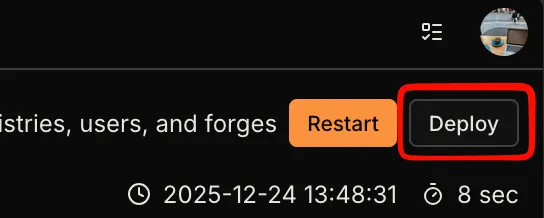
Once enabled, a Deploy button appears on finished pipelines.
Permissions
Section titled “Permissions”Who can enable deployments
Section titled “Who can enable deployments”Only repository admins can enable or disable deployments in the repository settings. Admin permission is synced from the forge (GitHub, GitLab, Gitea, etc.).
Who can trigger deployments
Section titled “Who can trigger deployments”By default, any user with push permission to the repository can trigger deployments.
Team-based restrictions
Section titled “Team-based restrictions”For stricter control, you can restrict deployments to members of a forge team or organization:
-
Open repository settings
Go to Repository Settings → General
-
Enable deployments
Check the Deployments option
-
Set the team restriction
In the Restrict to Team field, enter either:
org/team, for exampleacme/deployers: only members of that team may deploy.org, for exampleacme: every member of that organization may deploy.
Membership is checked against the repo’s forge each time a deployment starts or runs again, using the account the user linked for that forge.
Names are compared without regard to case.
Saving a value with an empty part, such as acme/ or /deployers, is rejected.
| Forge | org/team matches |
org matches |
|---|---|---|
| GitHub | a team, by its slug | an organization the user belongs to |
| GitLab | a subgroup, by its full path (parent/sub/team), at any access level |
a group or subgroup by its display name (not its path), where the user has Developer access or higher |
| Gitea, Forgejo | a team, by its name | an organization the user belongs to |
| Bitbucket | not supported, denies everyone | a workspace the user can access |
| Bitbucket Datacenter | not supported, denies everyone | a project the user can see |
Which deployments are checked
Section titled “Which deployments are checked”The rules above (deployments enabled, team restriction) apply to every deployment:
- the Deploy button, the API and
crow pipeline deploy - restarting a deployment pipeline, and rerunning one of its workflows or steps
- deployment webhooks from the forge (GitHub). With Deployments off, Crow ignores them. With a team restriction, the user who created the deployment on the forge must have logged in to Crow with that forge account; otherwise the webhook is rejected and the forge shows the reason in its webhook delivery log.
A new deployment can only start from a pipeline that succeeded. Restarting a deployment pipeline to the same target is a retry and is allowed after a failure. Sending a failed deployment to a different target counts as a new deployment and is refused.
Triggering a Deployment
Section titled “Triggering a Deployment”Click the Deploy button to open the deployment dialog:
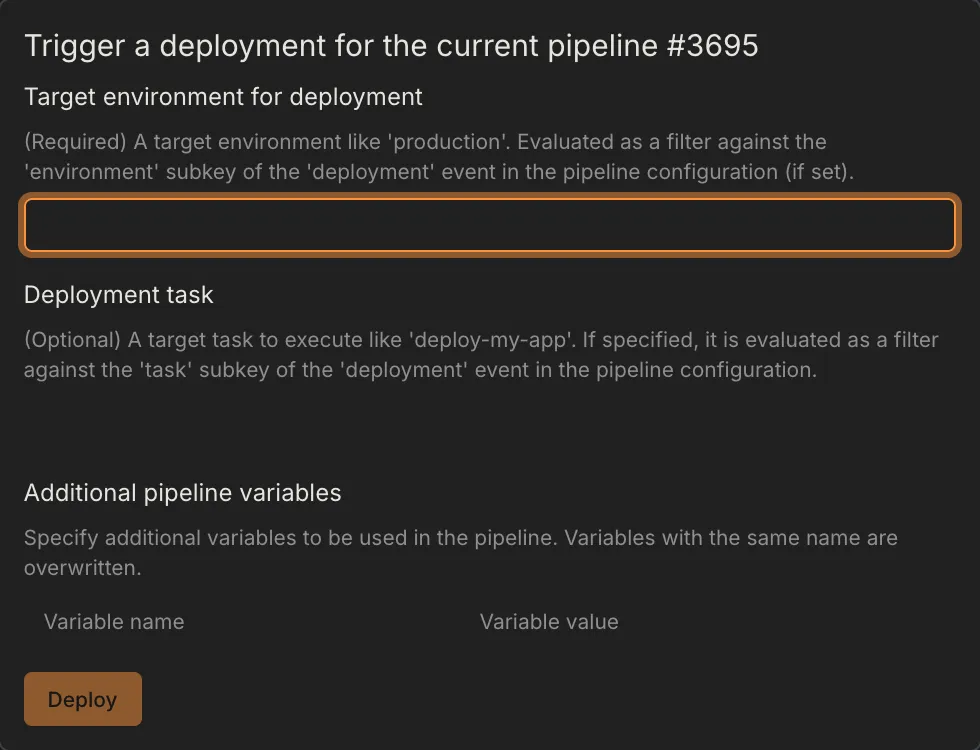
| Field | Required | Description |
|---|---|---|
| Environment | Yes | Target environment (e.g., production, staging) |
| Task | No | Secondary filter to narrow down deployment jobs |
From the CLI:
last picks the newest successful push pipeline on the default branch; --branch, --event and --status change that filter.
Only successful pipelines can start a new deployment, so --status other than success is useful only together with --event deployment, to retry a failed deployment to the same target.
Filtering Deployments in Workflows
Section titled “Filtering Deployments in Workflows”Use the deployment event in your workflow’s when block to control which steps run during deployments.
Basic Environment Filter
Section titled “Basic Environment Filter”Environment with Task Filter
Section titled “Environment with Task Filter”Glob Patterns
Section titled “Glob Patterns”Both environment and task support glob patterns:
Include/Exclude Syntax
Section titled “Include/Exclude Syntax”For complex filtering, use include/exclude lists: